

If you run a website and want it to feel alive, showing your latest Instagram posts is one of the easiest ways to do it. A social photo feed widget lets you pull images straight from your Instagram account and display them beautifully on your site, without asking visitors to leave the page. social media widget shortcode Instead of a static homepage, your visitors see real-time content, fresh photos, and social proof that your brand is active and engaged with its audience.
Adding a social photo feed widget to your site is not just about looks. It builds trust. When a customer sees genuine photos, reviews, and tagged content flowing from your Instagram profile onto your homepage, they feel more confident about your brand. This kind of visual proof works far better than plain text testimonials because photos are instantly believable and easy to scan.
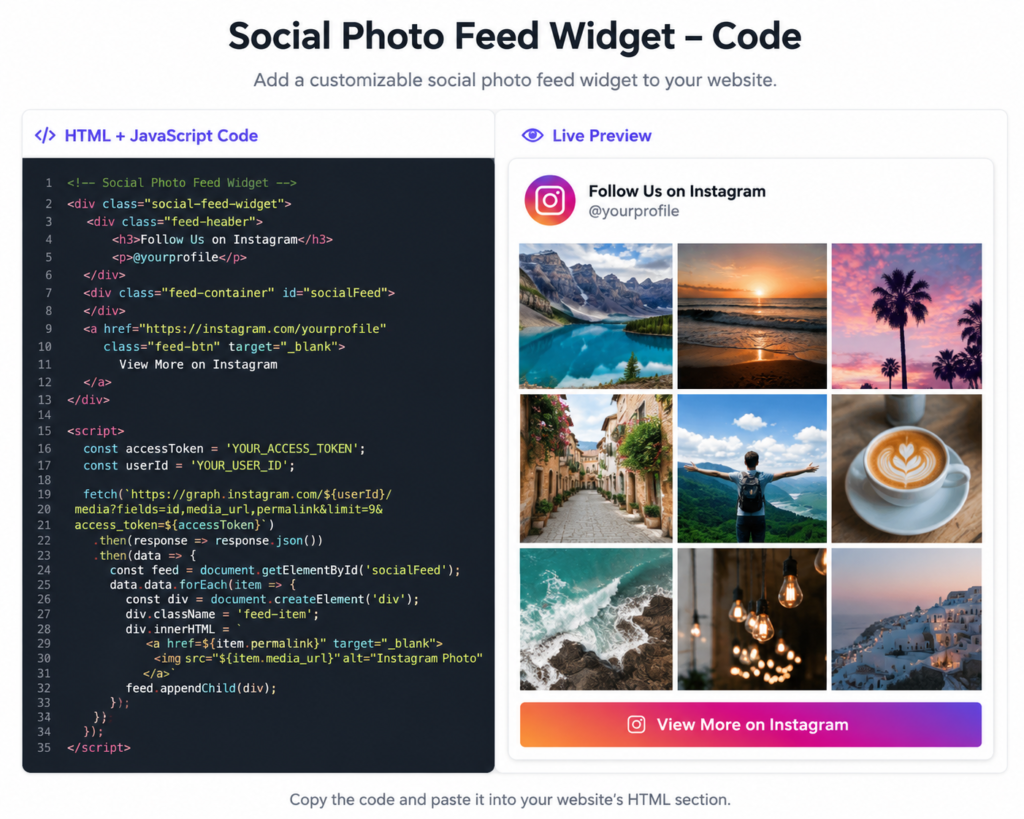
Why You Need a Social Photo Feed Widget Code
Many site owners assume they need a developer to connect Instagram to their website. That is not true anymore. With ready-made social photo feed widget code, you can copy a small snippet, paste it into your site, and have a working feed in minutes. There is no need to touch the Instagram API documentation or manage authentication tokens yourself, since most tools handle that in the background.
This is especially useful for small business owners, bloggers, and agencies managing multiple client sites. A good social photo feed widget should be lightweight, mobile-friendly, and customizable so it matches your existing color scheme and layout. Look for solutions that let you adjust the number of columns, spacing, hover effects, and captions without writing custom CSS from scratch.
Widgets for Social Photo Feed on Any Platform
One of the best things about modern widgets for social photo feed displays is that they are not locked to a single platform. Whether your site runs on plain HTML, Shopify, Wix, Squarespace, or a custom framework, there are embeddable options built for each environment. Most providers give you a universal embed code that works almost anywhere a script tag is allowed, which saves a lot of time when you manage more than one website.
When choosing among different widgets for social photo feed, pay attention to loading speed. A feed that takes too long to load can hurt your page performance and search rankings. The best widgets lazy-load images, cache content, and only pull the necessary media so your site stays fast even with dozens of photos displayed.
WordPress Instagram Feed Plugin Free Options
If your site runs on WordPress, you are in luck because there are several excellent WordPress Instagram feed plugin tools available. These plugins usually install in a few clicks, connect to your Instagram business or creator account, and let you place a shortcode or block anywhere on your pages. A reliable WordPress Instagram feed plugin free version typically includes basic grid layouts, a set number of photos, and simple customization options like column count and image spacing.
Free plans are a great starting point for personal blogs or small shops testing the waters. As your traffic grows, you can always upgrade to a premium version for features like shoppable tags, hashtag feeds, or multiple account aggregation. The key is starting with a plugin that is actively maintained, since Instagram frequently updates its API and abandoned plugins can break without warning.
Key Features to Look For
When comparing any social photo feed widget, keep an eye on these essentials: responsive design for mobile and tablet users, fast loading times, easy customization of grid or carousel layouts, and support for multiple Instagram accounts if you manage more than one brand. Some tools also allow you to moderate which photos appear, hide unwanted posts, and add a call-to-action button linking directly to your Instagram profile.
Security matters too. Since these tools connect to your Instagram account, make sure the provider uses official API access rather than scraping methods that could violate platform terms or stop working suddenly. A trustworthy social photo feed widget code provider will clearly explain how your data is handled and how often the feed refreshes.
How to Install a Feed Widget Step by Step
Getting started is simple. First, choose a widget provider that fits your platform, whether that is a plugin, an app, or a raw embed script. Second, connect your Instagram account through the official login process, which grants the widget permission to display your public photos. Third, customize the layout, choose your column count, and pick a theme that matches your branding. Finally, copy the generated embed code and paste it into your page builder, theme editor, or plugin settings.
For WordPress users searching for a wordpress instagram feed plugin free download, always check plugin reviews and update history before installing. A plugin with recent updates and active support is far safer than one that has not been touched in over a year. Testing the widget on a staging site first is also a smart habit before pushing changes live.
Final Thoughts
A well-designed Instagram feed widget turns your website into a living, breathing showcase of your brand. Whether you choose a simple widgets for social photo feed embed or a fully featured Instagram feed plugin free solution, the goal stays the same: keep your site fresh, build trust with visitors, and make your social presence work harder for your business. Take time to compare a few tools, test their loading speed, and pick the one that fits your design and technical comfort level best social media widget shortcode.
Top 10 FAQs
1. What is a social photo feed widget?
It is a tool that displays your Instagram photos directly on your website, updating automatically so visitors see your latest posts without leaving the page.
2. Is social photo feed widget code hard to install?
No, most providers give a simple copy-paste embed snippet or shortcode, so no coding experience or developer help is typically required for basic setup.
3. Can I use widgets for social photo feed on any website builder?
Yes, most widgets work across WordPress, Shopify, Wix, Squarespace, and custom HTML sites using a universal embed script or platform-specific plugin.
4. Is there a good WordPress Instagram feed plugin free option available?
Yes, several reputable free plugins exist, offering grid layouts, basic customization, and official Instagram API connections suitable for small sites and blogs.
5. Will a photo feed widget slow down my website? A well-built widget uses lazy loading and caching, so it should not noticeably slow your site if configured correctly and kept updated.
6. Can I display multiple Instagram accounts in one feed?
Many premium widgets support multiple account aggregation, letting agencies or multi-brand businesses show several Instagram feeds within one unified layout.
7. Do these widgets work on mobile devices?
Yes, quality social photo feed widgets are responsive by default, automatically adjusting columns and spacing for phones, tablets, and desktop screens.
8. Is it safe to connect my Instagram account to a widget?
It is safe when using official API-based tools rather than scraping services, since official methods follow Instagram’s terms and data policies.
9. Can I moderate which photos appear in my feed?
Most widget tools let you hide specific posts, filter by hashtag, or manually curate which images display, giving you full editorial control.
10. How often does the free WordPress plugin update the feed?
Update frequency varies by plugin, but most free versions refresh every few hours automatically, with premium tiers often offering faster real-time syncing.



Add comment